

Getting started with Schedulo Coach.
From the first time you open it to a printed run-out sheet: activate Schedulo Coach, find your way round the example company, set up your own records, take a job and give it a coach and a driver.
What you need
Schedulo Coach plans coach work job by job: private hire, school and works contracts, tours, excursions and rail replacement. Every job is its own booking, with its own itinerary, times, coach, driver and price. You can run it two ways, and both are the same app:
- On Windows 10 or 11: download it from the client area. It's one
.exein a zip, with no installer: unzip it and run Schedulo Coach. - In a browser: open coach.schedulo.uk in Chrome, Edge, Firefox or Safari. There's nothing to install, and your project is kept in the browser after every change.
You also need a Schedulo Coach licence: either a Schedulo account whose company plan includes Coach, or a licence key with the label COACH (or a bundle that includes it). No key yet? E-mail Licence@schedulo.uk for a trial.
Step 1: activate Schedulo Coach
The first time you open Schedulo Coach it asks to be activated, and shows nothing else until it is. Choose one:
- Sign in with your Schedulo account. Sign in in the window that opens, then come back. If your company's plan includes Coach, the key for this computer comes with it.
- Use a licence key instead. Type or paste the key we sent you. If your key is locked to one computer, send us this computer's code from the same screen (the Copy button copies it).
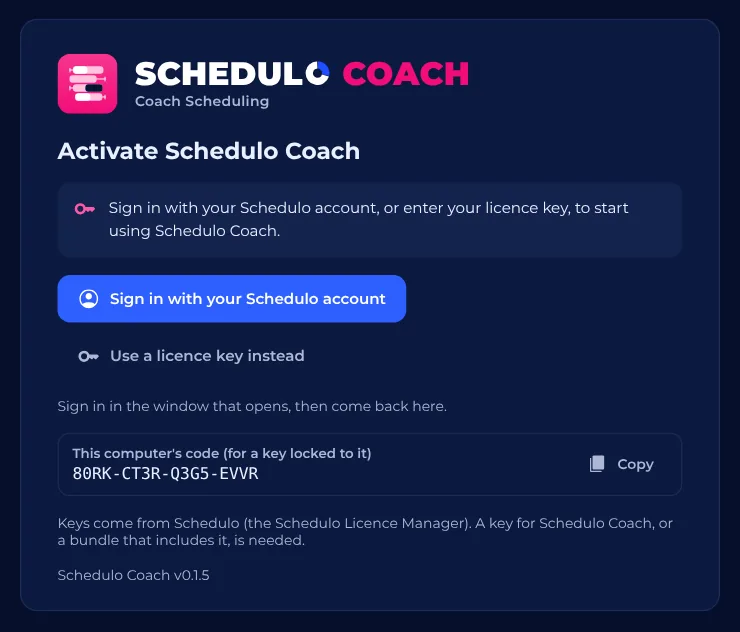
Once the key is approved, Schedulo Coach keeps working offline for 7 days. Go online at least once a week and it renews itself.
Step 2: look round the example company
Schedulo Coach opens on Example Coaches, a made-up operator with eleven drivers, ten coaches, nine customers and a fortnight of work, some of it still to allocate. It's the quickest way to see how everything fits together, and nothing you change in it matters. You can always get it back from Open › The example project.
The menu on the left is in four parts:
- Plan: the Drivers schedule and Coaches schedule (every job on a timeline, a row a driver or a coach), the list of Jobs, and Contracts for regular work such as school runs.
- Records: your Customers & clients, Vehicles, Drivers, Places, and Depots & costs.
- Tools: Sheets & exports, the Library file and Preferences.
- Share: Collaborate, to plan the same project with colleagues.
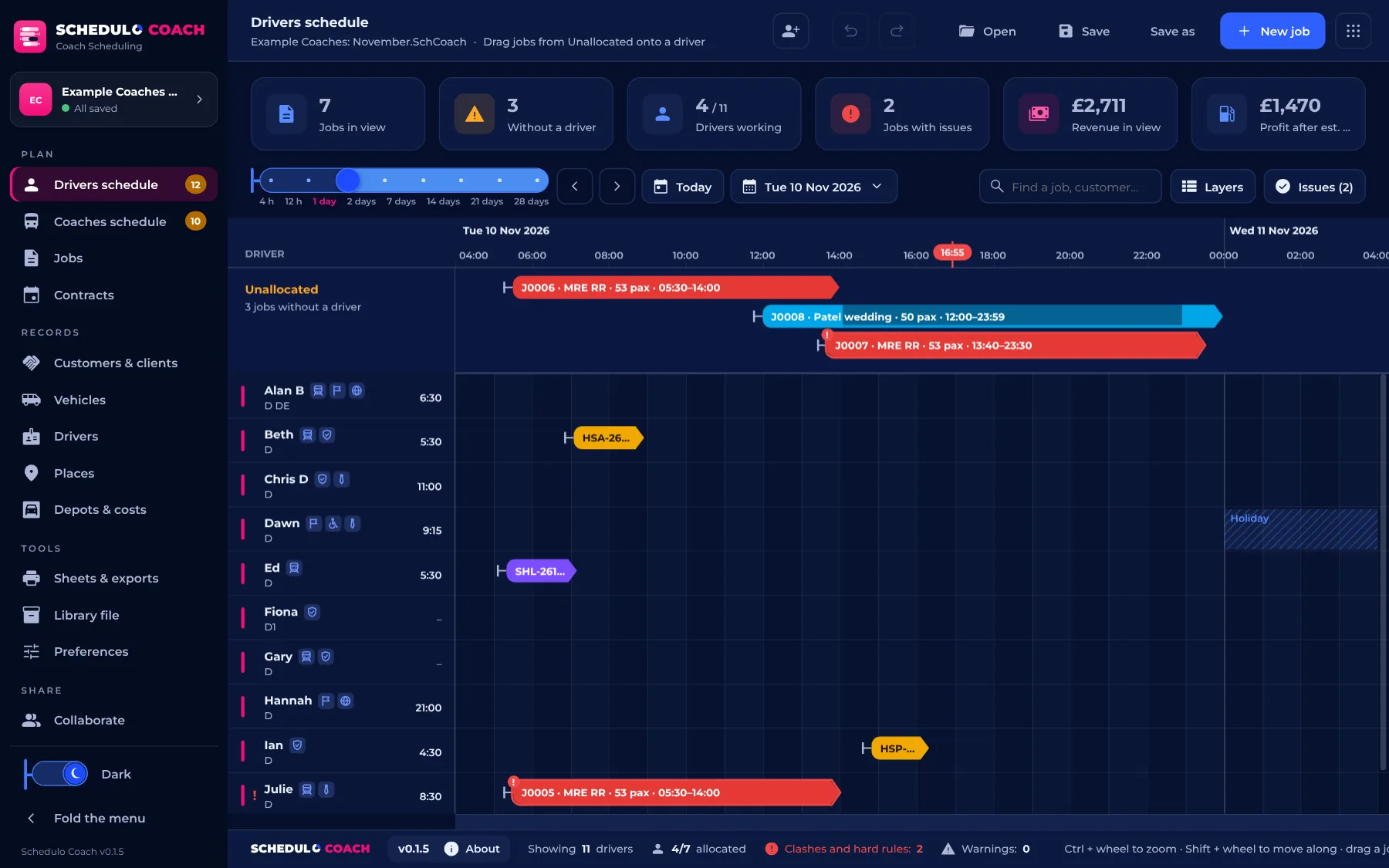
On the schedules, the slider at the top shows from 4 hours up to 28 days at once, and the arrows and Today move along. Ctrl and the mouse wheel zoom, and Shift and the wheel move along the timeline. The figures across the top count the jobs in view, the ones still without a driver, the drivers working, any jobs with issues, and the takings and profit. Issues lists anything that needs a look, such as a driver given two jobs at once.
Step 3: start your own project
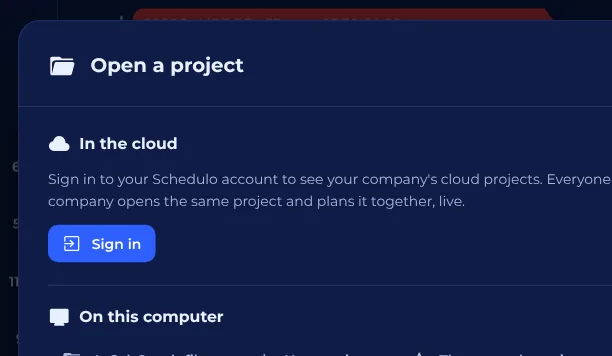
When you're ready to plan your own work, press Open (Ctrl+O) and choose New project. Open is also where you open a saved .SchCoach file and, once you're signed in, your company's projects in Schedulo's cloud.
Then go to Preferences and fill in The company: your company name and a name for the project, as they appear on the printed sheets. While you're there, look at the rest. You can change any of it later:
- Changeovers: the least time a driver or coach needs between one job and the next, and the average speed used for time estimates.
- Checks: which problems stop an allocation and which only warn: overlapping work, unavailable drivers and the wrong licence.
- Drivers' hours: the longest working day, the least rest between days, and how long before the first job a driver signs on.
- Costs: the fuel price, a default mpg and the driver's cost an hour, for each job's estimated profit.
- Holidays: bank holidays (one button adds England and Wales) and school holidays, which contracts use.
Press Save preferences when you're done. Your depots, and their rent, insurance and other running costs, go on the Depots & costs page.
Step 4: add your coaches, drivers and customers
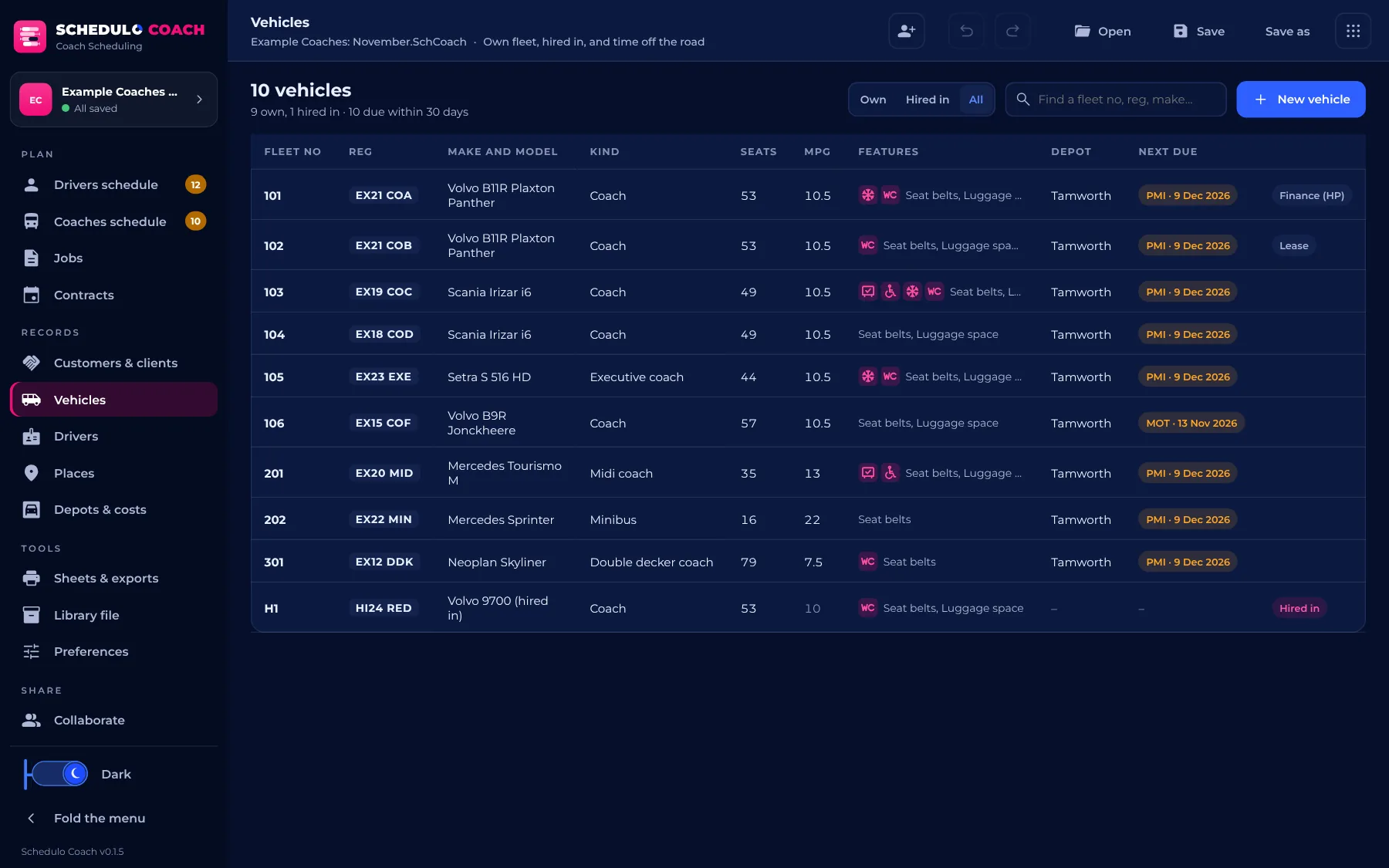
Each page under Records has a New button at the top right. Start with these:
- Vehicles: fleet number, registration, make and model, kind (coach, midi, minibus, double decker), seats, mpg, depot and features such as seat belts, toilet, wheelchair access or Wi-Fi. Add MOT and other due dates, any finance or lease, and the days it's off the road. Hired-in coaches go here too.
- Drivers: name, licence categories (D, D1) and expiry, CPC, depot and skills such as rail replacement, tours or DBS checked. Add holidays and days off, and their pay if it's different from the usual rate.
- Customers & clients: the name, the short name the schedule writes on their jobs, a category with its colour, contacts, and the type of work they usually book.
- Places: the depot, stations, schools and venues you go to often, pinned on the map. You can also find a place by name, free, with no key or account.
Tip: once your records are in, save them as a library file (.SchCoachLib) from Library file. Every new project can then bring in your vehicles, drivers, customers, places, sheet templates and preferences in one go, instead of typing them again.
Step 5: take your first job
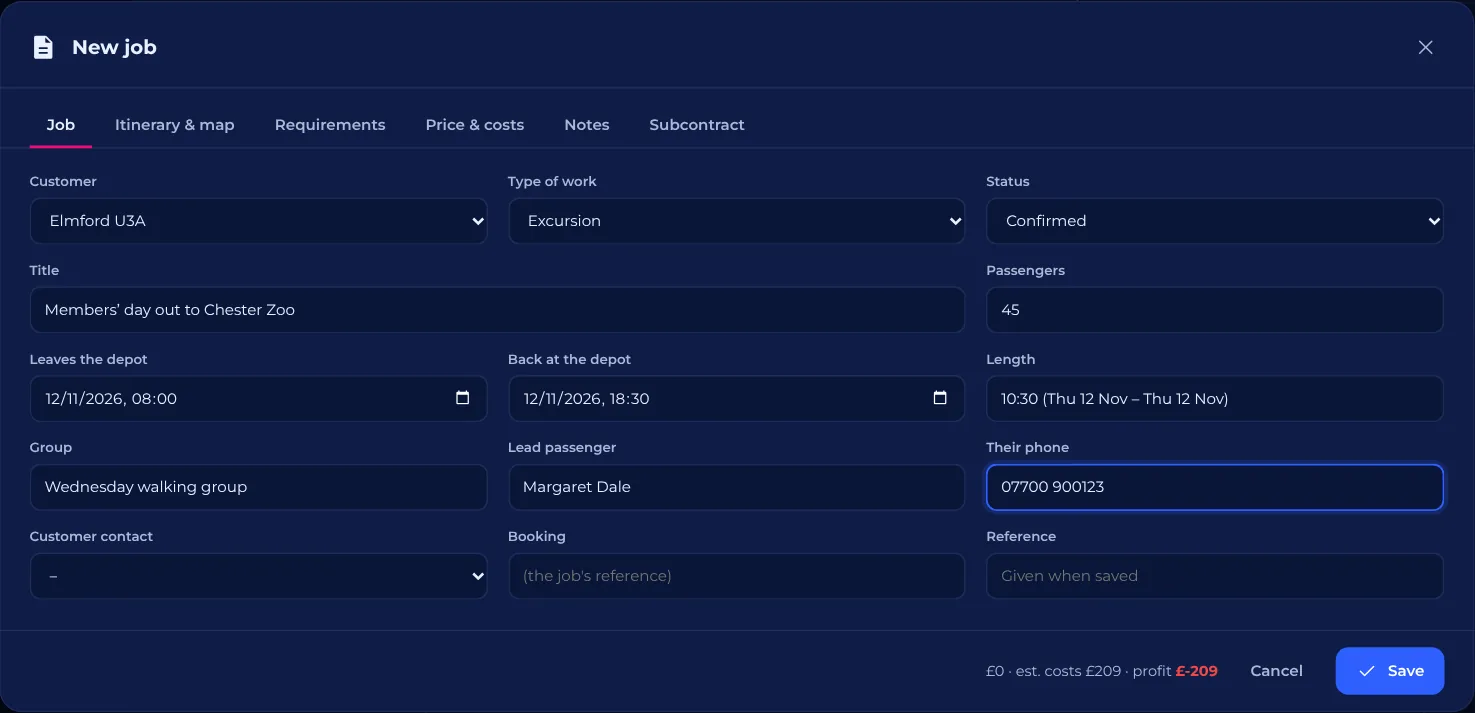
Press New job at the top right. The Job tab is the booking:
- Choose the customer, the type of work (private hire, tour, excursion, rail replacement, school or works contract, airport transfer, wedding, sports team) and the status, such as Confirmed.
- Give it a title and the number of passengers.
- Set when it leaves the depot and when it's back at the depot.
- Add the group, the lead passenger and their phone if you have them. The reference is given when you save.
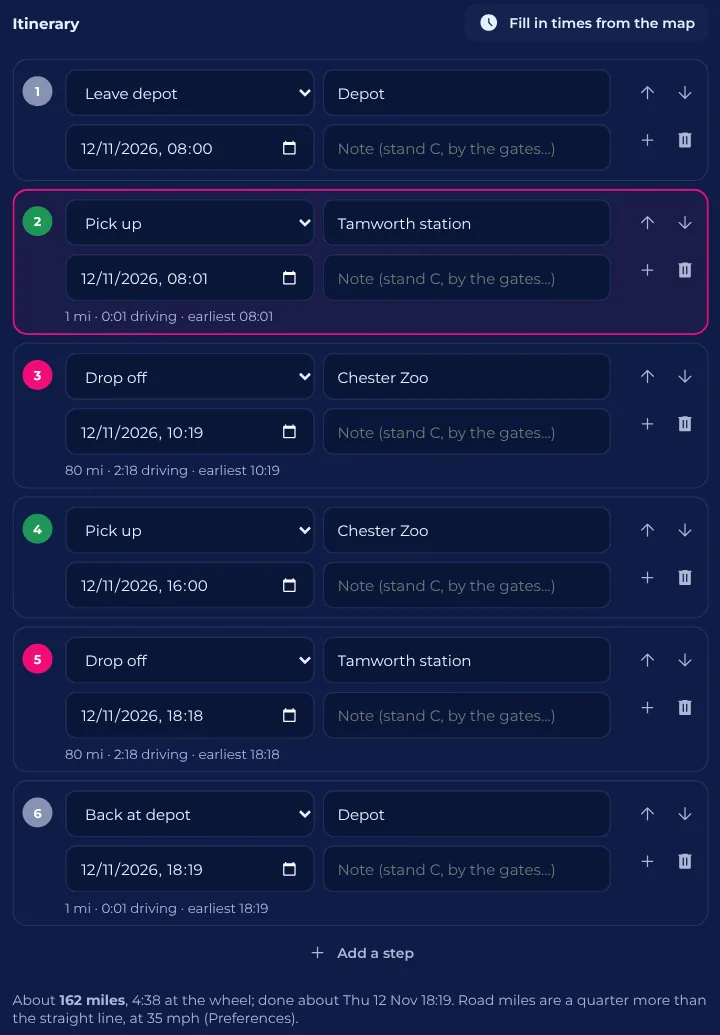
On Itinerary & map, list the steps of the day: leave the depot, each pick-up and drop-off, and back at the depot. Choose a place from your list or type one and pin it on the map. Set the times you know, such as when the group leaves the zoo, then press Fill in times from the map: Schedulo Coach works out the miles and driving time between the steps, adds breaks on long runs, and fills in the rest.
The other tabs are there when you need them:
- Requirements: the seats it needs, the kind of vehicle, what the coach must have (a toilet, wheelchair access) and what the driver must be (DBS checked, rail replacement trained).
- Price & costs: the price and any tolls or parking. Schedulo Coach estimates the fuel, the driver's pay and the job's share of your running costs, and shows the profit. The figures at the bottom of the window update as you type.
- Notes for the driver and the office, and Subcontract to pass the job to another operator.
Press Save. The job goes into Unallocated on the schedules until it has a driver and a coach.
Step 6: give it a driver and a coach
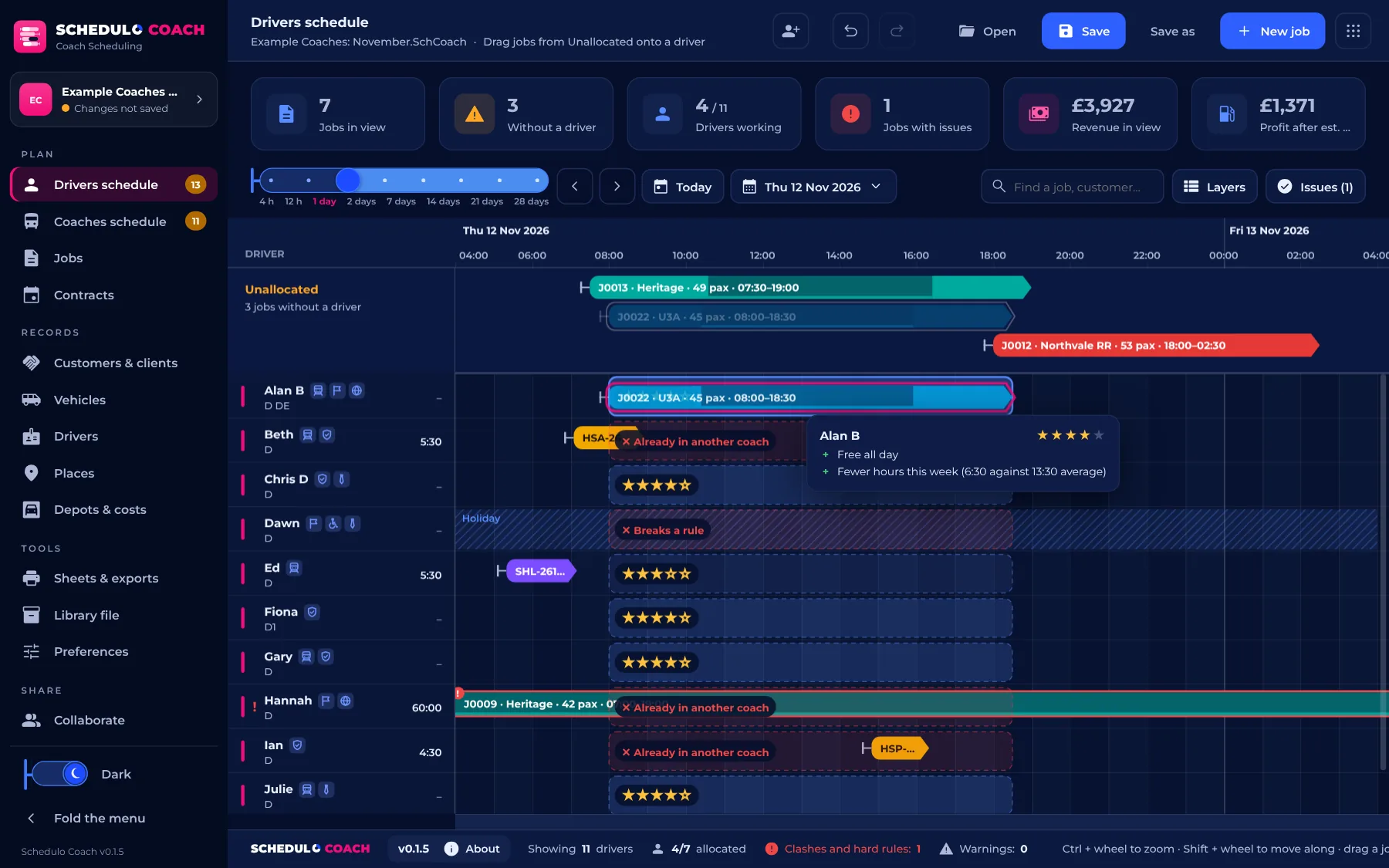
Go to the Drivers schedule and drag the job from Unallocated onto a driver. As you drag, every row shows how well it fits: stars for a good match, or the reason it doesn't, such as Already in another coach or Breaks a rule. Hold the job over a row to see why.
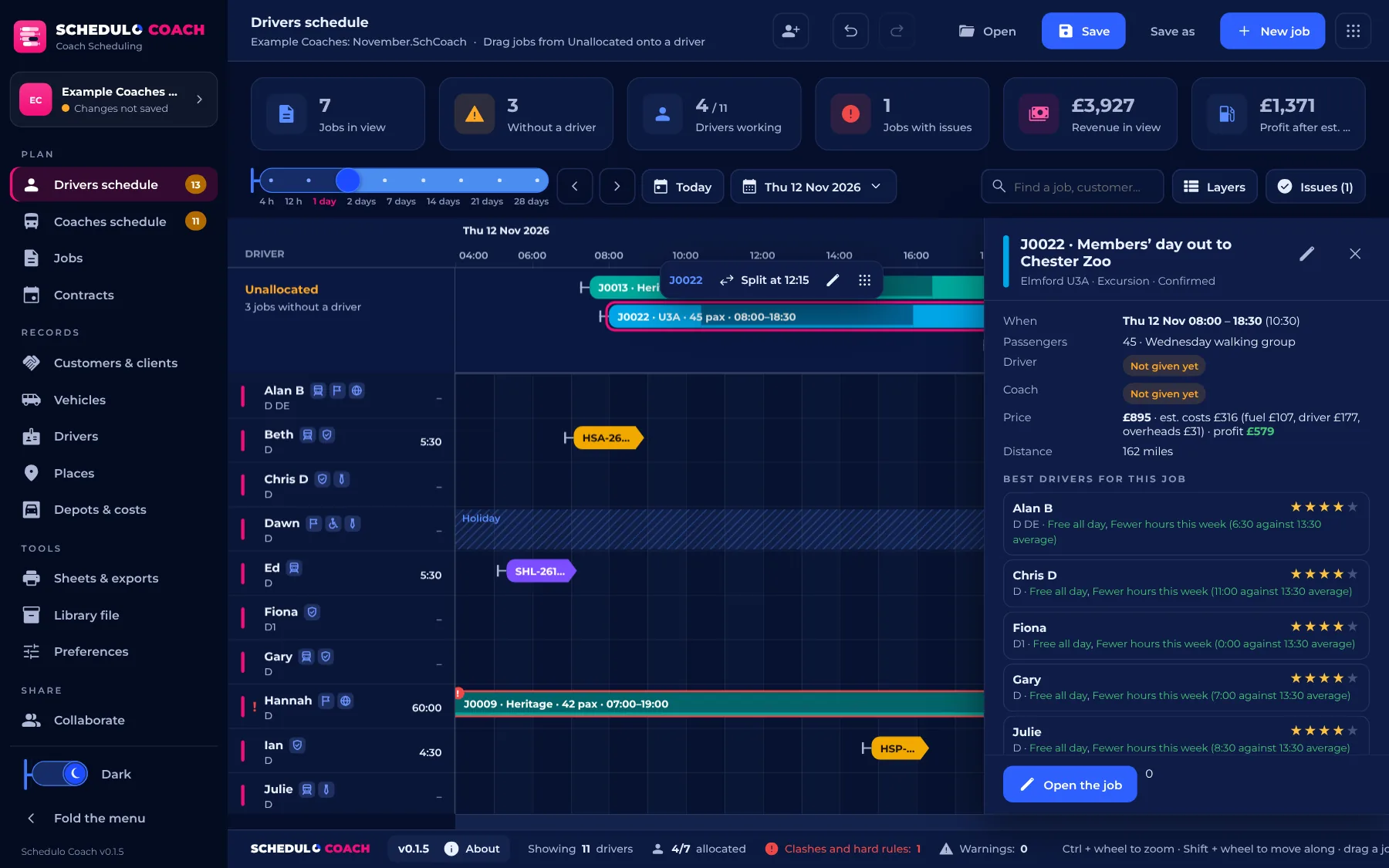
Prefer to click? Click the job to open its card beside the timeline. It shows the job's times, price and profit, and lists the best drivers and best coaches for it, with their stars and the reasons: free all day, has the skills the job needs, the right number of seats, fewer hours this week. Click one to give it the job. Do the same for the coach on the card, or on the Coaches schedule.
The checks run as you go. A driver given two jobs at once, a coach with two drivers, someone on holiday or a day that goes over your drivers' hours is marked on the schedule and listed under Issues. Whether these stop the allocation or only warn is up to you, in Preferences › Checks.
From the card you can also split a job between two drivers at a change-over, add a staff car to take the driver to or from the coach, or use the + at either end of a job to add the rest of the driver's day: breaks, standby, yard duties, cleaning, vehicle checks or training.
Step 7: print the day's sheets
Open Sheets & exports and pick the day. Each tab is a sheet ready to Print (or save as PDF from the print window) or Download CSV:
- Run-out sheet: every job of the day in order, with sign-on, the coach, the driver, the first pick-up and when it's back. Anything still without a coach or driver is marked in red.
- Driver job sheets and work tickets for the drivers, and the book-on sheet.
- The coach graph, duty graph, weekly rota and jobs list.
- Booking confirmations to send to your customers.
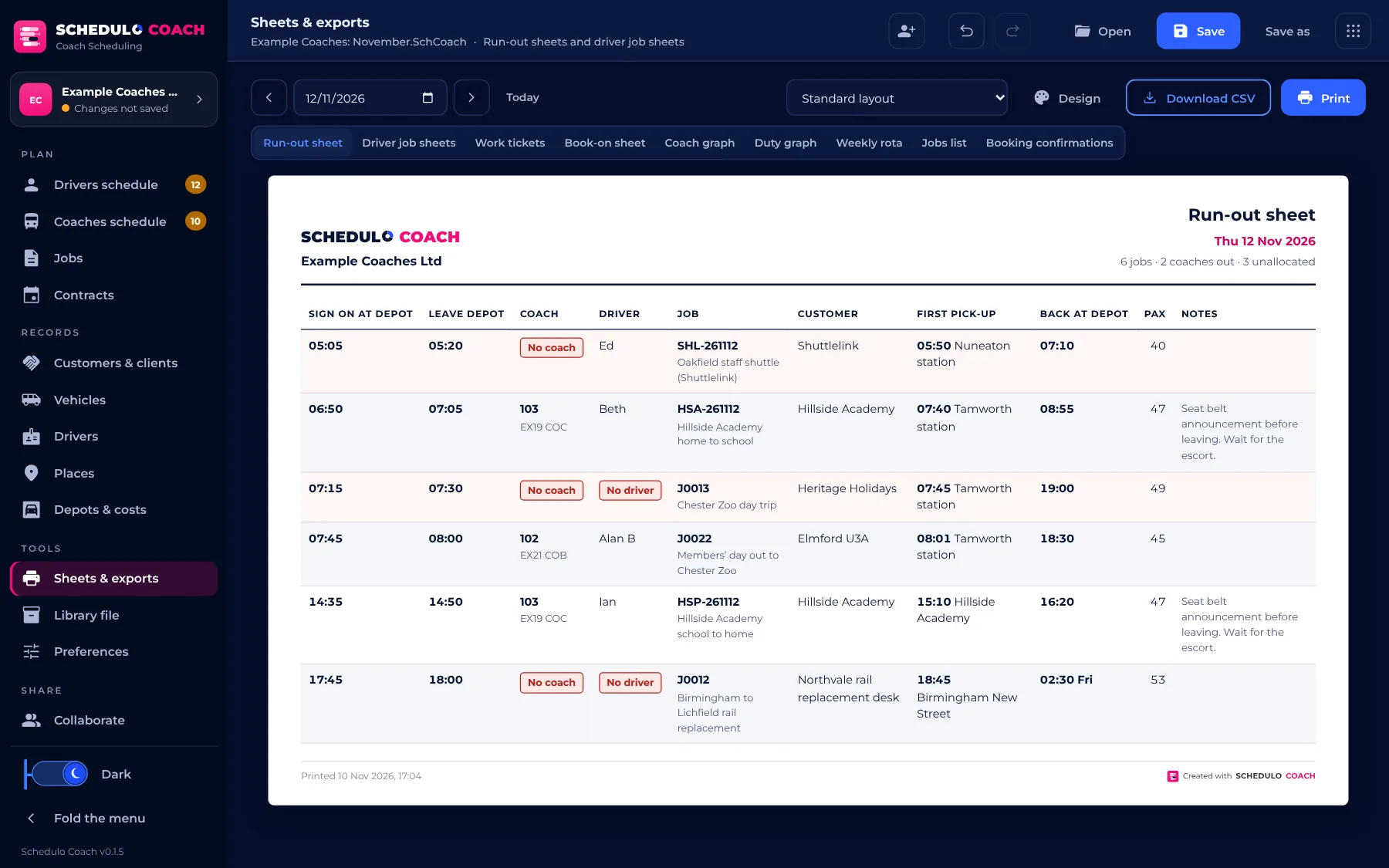
Design makes the sheets your own: the columns and headings, your logo and colours, the paper size and a watermark. Save a design as a template, and share it with another office as a .SchCoachSheet file.
Step 8: save, and plan together
Press Save (Ctrl+S) to save the project as a .SchCoach file. After the first time, Save writes straight back to the same file; Save as makes a copy. The box at the top of the menu says All saved or Changes not saved, and Undo and Redo (Ctrl+Z, Ctrl+Y) are at the top of every page.
To plan with colleagues, open Collaborate and press Start sharing. Send them the join code (it starts NTSK-) and choose what each person can do: View only, Edit (the work) or Full (the records and preferences too). Signed in to your Schedulo account, you can invite people by e-mail or with a link, and, if your company's plan includes them, keep the project in Schedulo's cloud so everyone can open it any time. The desktop app and the browser work together both ways.
Common questions
- Is the browser version different? No. coach.schedulo.uk is the same app, and Save and Open use the same
.SchCoachfiles as the desktop app, so you can move between them. - Can I bring in my records from a spreadsheet? Type them in once, or ask us: e-mail Support@schedulo.uk with what you have. Once they're in, a library file carries them into every new project.
- How do I plan a school run every day? Make it a contract: set the days it runs on its calendar, with school and bank holidays left out, and it makes its jobs on those days for you to allocate.
- Why is a job red? It has an issue. Open Issues at the top of the schedule, or click the job, to see what it is.
- Can I undo a change? Yes. Undo takes back any change, including allocations, and nothing is kept in the file until you press Save.
Still stuck? E-mail Support@schedulo.uk and we'll help. See everything Schedulo Coach does on the Schedulo Coach page.
Ready to plan smarter?
Ask for a demonstration, a trial or a licence key, or tell us what your operation needs. Every message goes to the right person at Newey Transport Services, and we reply by e-mail.
- Demonstrations and general questions
- ContactUs@schedulo.uk
- Licence keys and renewals
- Licence@schedulo.uk
- Help with Schedulo TXC, Bus, Coach or licensing
- Support@schedulo.uk
- News and updates
- Follow Schedulo on LinkedIn